Embedding reference
Complete API reference for embedding Qyra content securely using JWTs
Embedding is available to all Qyra Cloud users and Enterprise On-Prem customers. Get in touch to have this feature enabled in your account.
Try it and see the code. embed.qyraflow.com is an interactive demo and helper that lets you preview embedded content and generate a JWT for your own project. For a working end-to-end example, see the example embed app on GitHub — a Node.js app that mints tokens server-side and renders a Qyra dashboard.
Overview
This document provides complete API reference for JWT structure and configuration options used across all embedding and sharing methods.
Qyra supports three ways to share embedded content:
- Shareable URL — Generate a link that anyone can open directly in their browser, no iframe or SDK needed. Ideal for sharing dashboards with external users like clients or partners.
- iframe embedding — Embed dashboards inside your own web pages using a standard
<iframe>tag. - React SDK — Embed dashboards and charts in React/Next.js apps with full programmatic control.
All three methods use the same JWT-based authentication described below.
For method-specific implementation details, see:
- iframe embedding reference - URL patterns, HTML embedding
- React SDK reference - React components, props, TypeScript
For step-by-step guides, see:
Embedded Qyra content is available to view by anyone (not just folks with a Qyra login). Content is secured using JWT (JSON Web Tokens) with configurable expiration times.
Known limitations
- Embedding works for dashboards, charts, AI agents, the metrics catalog, and data apps. To embed explores, use the
canExploreflag in a dashboard or metrics catalog token. - The Filter dashboard to option when clicking on individual chart segments will not work on embedded dashboards.
If you're interested in embedding and one or more of these items are blockers, please reach out.
Embed secret
The embed secret is used to generate JWTs for embedding content. This secret acts like a password that encrypts and signs your tokens.
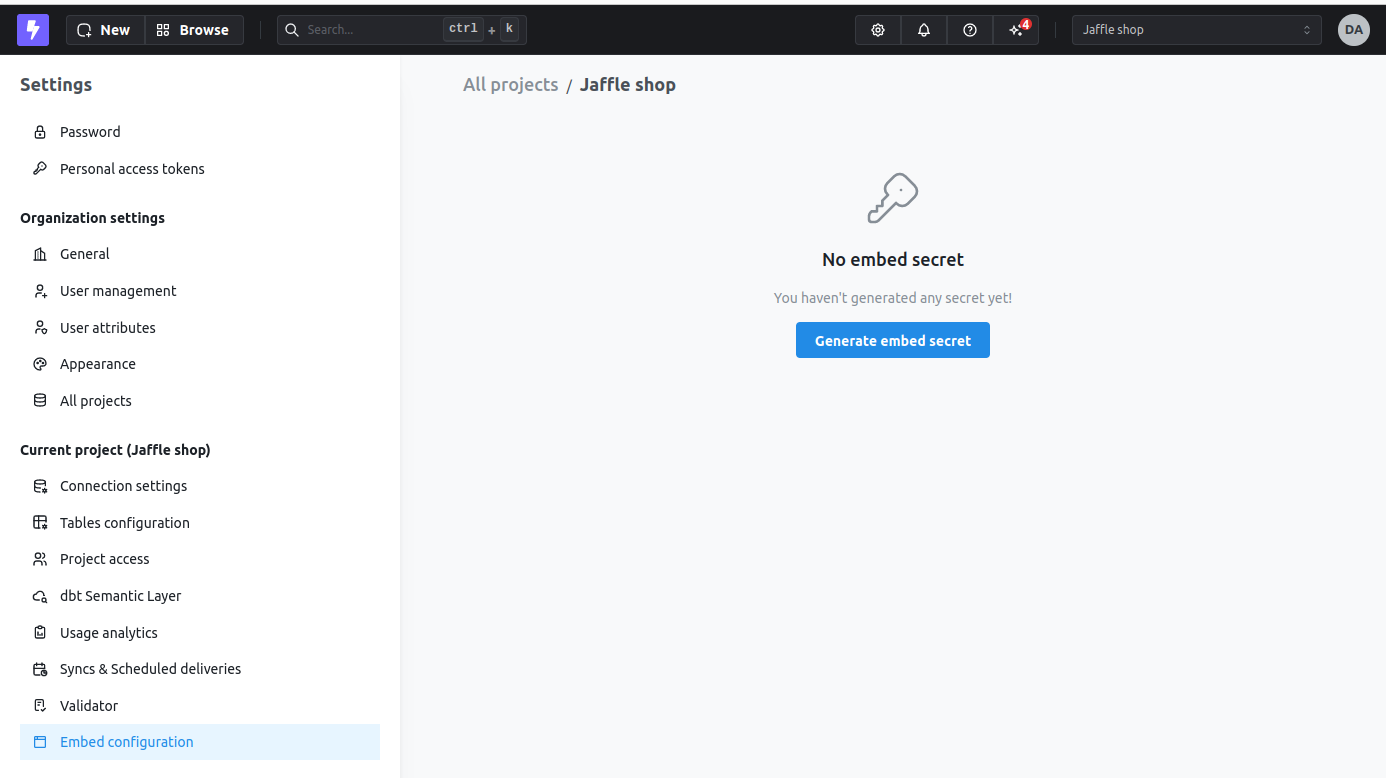
Keep your embed secret secure! Store it as an environment variable and never expose it in frontend code. Always generate tokens server-side.
You can regenerate the secret by clicking Generate new secret. If you do this, all previously generated embed URLs will be invalidated immediately.
JWT structure
All embedding methods use JWTs to authenticate and configure embedded content. The token structure includes three main parts:
Common fields
All tokens share these fields:
{
  content: {
    // Content configuration (required)
    type: 'dashboard' | 'chart' | 'aiAgent' | 'metricsCatalog' | 'dataApp' | 'apiAccess',
    projectUuid?: string,
    // ... type-specific fields
  },
  user?: {
    // User information for analytics (optional)
    externalId?: string,
    email?: string,
  },
  userAttributes?: {
    // User attributes for row-level filtering (optional)
    [attributeName: string]: string,
  },
  // Token expiration (handled by JWT library)
  exp?: number,
  iat?: number,
}Dashboard token
For embedding dashboards with multiple tiles, filters, and interactive features.
All configuration options (dashboardFiltersInteractivity, canExportCsv, canExplore, etc.) must be nested inside the content object — not at the top level of the JWT payload. A common mistake is placing these properties at the root level, which will cause them to be silently ignored.
{
  content: {
    type: 'dashboard',

    // Dashboard identifier (required, use one)
    dashboardUuid?: string,
    dashboardSlug?: string,

    // Project identifier (optional)
    projectUuid?: string,

    // Filter interactivity
    dashboardFiltersInteractivity?: {
      enabled: 'all' | 'some' | 'none',  // Required
      allowedFilters?: string[],          // Required if enabled: 'some'
      hidden?: boolean,                   // Optional: hide filter UI
      canAddFilters?: boolean,            // Optional: let viewers add temporary filters
    },

    // Parameter interactivity
    parameterInteractivity?: {
      enabled: boolean,
    },

    // Export capabilities
    canExportCsv?: boolean,         // Allow CSV export
    canExportImages?: boolean,      // Allow image/PNG export
    canExportPagePdf?: boolean,     // Allow PDF export

    // Interactive features
    canDateZoom?: boolean,          // Allow date granularity zoom
    canExplore?: boolean,           // Allow "Explore from here"
    canViewUnderlyingData?: boolean, // Allow viewing raw data
    canViewDataApps?: boolean,      // Allow rendering data app tiles
  },

  // Optional: Allow embedded users to save new charts from Explore
  writeActions?: {
    spaceUuid: string,                // Destination space for created content
    serviceAccountUserUuid?: string,  // Actor for the write (use one)
    userUuid?: string,
  },

  // Optional: User information for query tracking
  user?: {
    externalId?: string,
    email?: string,
  },

  // Optional: User attributes for row-level filtering
  userAttributes?: {
    [attributeName: string]: string,
  },
}Example:
import jwt from 'jsonwebtoken';

const token = jwt.sign({
  content: {
    type: 'dashboard',
    dashboardUuid: 'abc-123-def-456',
    dashboardFiltersInteractivity: {
      enabled: 'all',
    },
    canExportCsv: true,
    canExportImages: true,
    canExportPagePdf: true,
    canDateZoom: true,
    canExplore: true,
    canViewUnderlyingData: true,
    canViewDataApps: true,
  },
  user: {
    externalId: 'user-789',
    email: 'user@example.com',
  },
  userAttributes: {
    tenant_id: 'tenant-abc',
  },
}, SECRET, { expiresIn: '1h' });Chart token
For embedding individual saved charts with minimal UI:
Chart embedding is only available via the React SDK. iframe embedding for charts is not currently supported. See the React SDK reference for details.
{
  content: {
    type: 'chart',

    // Chart identifier (required)
    contentId: string,  // savedQueryUuid

    // Project identifier (optional)
    projectUuid?: string,

    // Preview mode (optional)
    isPreview?: boolean,

    // Permission scopes (optional)
    scopes?: string[],  // e.g., ['view:Chart']

    // Export capabilities
    canExportCsv?: boolean,         // Allow CSV export
    canExportImages?: boolean,      // Allow image/PNG export
    canViewUnderlyingData?: boolean, // Allow viewing raw data
  },

  // Optional: User information for query tracking
  user?: {
    externalId?: string,
    email?: string,
  },
}Chart tokens use contentId (the saved chart UUID) instead of dashboardUuid, and the embed is scoped to that chart alone — it cannot reach any other content.
Example:
import jwt from 'jsonwebtoken';

const token = jwt.sign({
  content: {
    type: 'chart',
    contentId: 'saved-chart-uuid-789',
    scopes: ['view:Chart'],
    canExportCsv: true,
    canExportImages: false,
    canViewUnderlyingData: true,
  },
  user: {
    externalId: 'user-456',
    email: 'user@example.com',
  },
}, SECRET, { expiresIn: '24h' });AI agent token
For embedding a Qyra AI agent so users can chat with their data from inside your app. See Embedding AI agents for the full walkthrough.
{
  content: {
    type: 'aiAgent',

    // Agent the embed is allowed to use (required)
    agentUuid: string,

    // Project identifier (optional)
    projectUuid?: string,
  },

  // Required: AI agent embeds must include writeActions
  writeActions: {
    spaceUuid: string,                  // Space the agent reads/writes content from
    serviceAccountUserUuid?: string,    // Use a service account as the actor
    userUuid?: string,                  // Or use an existing Qyra user as the actor
  },

  // Optional: row-level filtering for the embedded viewer
  userAttributes?: {
    [attributeName: string]: string,
  },

  // Optional: user information surfaced in audit/analytics
  user?: {
    externalId?: string,
    email?: string,
  },
}AI agent tokens are scoped to a single agent. A token issued for one agentUuid cannot be used to access another agent, and dashboard or chart tokens are rejected on AI agent routes. The agent can only read dashboards and saved charts from writeActions.spaceUuid, and saves new charts back into that same space.
Example:
import jwt from 'jsonwebtoken';

const token = jwt.sign({
  content: {
    type: 'aiAgent',
    projectUuid: 'your-project-uuid',
    agentUuid: 'your-agent-uuid',
  },
  writeActions: {
    serviceAccountUserUuid: 'service-account-user-uuid',
    spaceUuid: 'destination-space-uuid',
  },
  userAttributes: {
    tenant_id: 'tenant-abc',
  },
  user: {
    email: 'customer@example.com',
  },
}, SECRET, { expiresIn: '1h' });Metrics catalog token
For embedding the project metrics catalog so embedded users can browse metrics and, optionally, continue into Explore. See Embedding the metrics catalog for the full walkthrough.
{
  content: {
    type: 'metricsCatalog',

    // Project identifier (required — pins the catalog to a single project)
    projectUuid: string,

    // Allow embedded users to open Explore from a metric (optional)
    canExplore?: boolean,
  },

  // Optional: enable saving charts from the embedded Explore. Required only
  // when canExplore is true and you want embedded users to save results.
  writeActions?: {
    spaceUuid: string,
    serviceAccountUserUuid?: string,
    userUuid?: string,
  },

  // Optional: row- and column-level filtering for the embedded viewer
  userAttributes?: {
    [attributeName: string]: string,
  },

  // Optional: user information surfaced in audit/analytics
  user?: {
    externalId?: string,
    email?: string,
  },
}Metrics catalog tokens only authorize the metrics catalog surface (and, when canExplore is true, the embedded Explore launched from a metric). Dashboard, chart, AI agent, and data app tokens are rejected by the metrics catalog routes, and metrics catalog tokens are rejected on other embed routes.
Example:
import jwt from 'jsonwebtoken';

const token = jwt.sign({
  content: {
    type: 'metricsCatalog',
    projectUuid: 'your-project-uuid',
    canExplore: true,
  },
  writeActions: {
    serviceAccountUserUuid: 'service-account-user-uuid',
    spaceUuid: 'destination-space-uuid',
  },
  userAttributes: {
    tenant_id: 'tenant-abc',
  },
  user: {
    email: 'customer@example.com',
  },
}, SECRET, { expiresIn: '1h' });Data app token
For embedding a data app as standalone content in an iframe (no dashboard). See How to embed data apps for the full guide.
{
  content: {
    type: 'dataApp',

    // Data app identifier (required)
    appUuid: string,

    // Project identifier (optional)
    projectUuid?: string,

    // Preview mode (optional)
    isPreview?: boolean,
  },

  // Optional: User information for query tracking
  user?: {
    externalId?: string,
    email?: string,
  },

  // Optional: User attributes for row-level filtering
  userAttributes?: {
    [attributeName: string]: string,
  },
}A dataApp token authorizes only the named app. It cannot render any other data app, chart, or dashboard, even if that content is on the embed allowlist, and interactivity options like canExportCsv, canExplore, and dashboardFiltersInteractivity do not apply to it.
A data app can run arbitrary metric queries across the project. Minting a dataApp token means accepting project-wide column access for the app's queries. Row-level access via user attributes is unchanged.
Example:
import jwt from 'jsonwebtoken';

const token = jwt.sign({
  content: {
    type: 'dataApp',
    projectUuid: 'your-project-uuid',
    appUuid: 'your-app-uuid',
  },
  user: {
    externalId: 'user-789',
    email: 'user@example.com',
  },
  userAttributes: {
    tenant_id: 'tenant-abc',
  },
}, SECRET, { expiresIn: '1h' });API access token
Use an API access token when your host app needs to call Qyra APIs through the React SDK, for example to list spaces, dashboards, and charts with Qyra.useQyraContent.
{
  content: {
    type: 'apiAccess',

    // Project identifier (required)
    projectUuid: string,

    // Service account used for permission checks (required)
    serviceAccountUserUuid: string,
  },

  // Optional: row-level filtering for APIs that evaluate user attributes
  userAttributes?: {
    [attributeName: string]: string,
  },

  // Optional: user information surfaced in audit/analytics
  user?: {
    externalId?: string,
    email?: string,
  },
}API access tokens do not embed a specific dashboard or chart. They let the React SDK call supported Qyra API endpoints with the permissions of serviceAccountUserUuid.
Example:
import jwt from 'jsonwebtoken';

const token = jwt.sign({
  content: {
    type: 'apiAccess',
    projectUuid: 'your-project-uuid',
    serviceAccountUserUuid: 'service-account-user-uuid',
  },
  userAttributes: {
    tenant_id: 'tenant-abc',
  },
  user: {
    externalId: 'customer-user-123',
    email: 'customer@example.com',
  },
}, SECRET, { expiresIn: '1h' });Rules:
- API access tokens must be generated server-side with your embed secret.
- API access is authorized through the service account. The token can only list or read content that the service account can access.
- A space UUID passed to an API hook is a filter, not a permission grant.
- API access tokens cannot perform embed write actions. Use an embed token that supports
writeActionswhen embedded users need to save charts or dashboards.
Interactivity options reference
Dashboard filters interactivity
Controls whether users can interact with dashboard filters.
dashboardFiltersInteractivity?: {
  enabled: 'all' | 'some' | 'none',
  allowedFilters?: string[],  // Filter UUIDs, required if enabled: 'some'
  hidden?: boolean,           // Hide filter UI but keep filters active
  canAddFilters?: boolean,    // Let viewers add temporary session-only filters
}
Options:
enabled: 'all'- All dashboard filters are visible and interactiveenabled: 'some'- Only filters listed inallowedFiltersare interactiveenabled: 'none'- Filters are applied but not visible or editablehidden: true- Filters are configurable at runtime, but UI is hidden (works with 'all' or 'some')canAddFilters: true- Render an Add filter button so viewers can add temporary filters over any filterable field in the dashboard's explores. Only effective when filter interactivity is enabled (enabled: 'all', orenabled: 'some'with a non-emptyallowedFilters). Viewer-added filters live in session state and the temp-filter deep-link parameter — a fresh embed URL starts clean. JWTs without this field behave exactly as before (button hidden). Metric filters in the picker still require themetric-dashboard-filtersfeature flag on the org.
Embed overrides targeting a locked dashboard filter are ignored, and the dashboard's saved locked value is used instead. Use a locked filter when you need to guarantee an embedded dashboard always runs with a specific value — for example, scoping every query to the customer who owns the embed session.
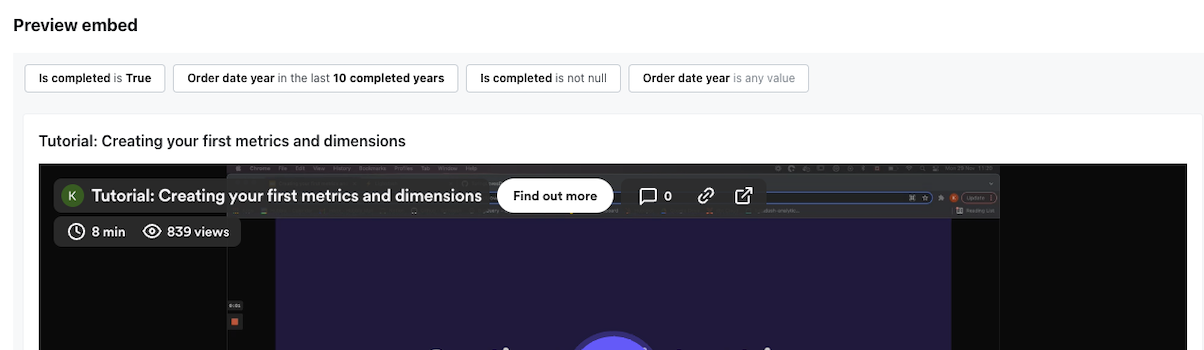
All filters available as interactive:
All filters configured on the dashboard will be shown in the embedded dashboard and interactive.
dashboardFiltersInteractivity: {
  enabled: 'all',
}
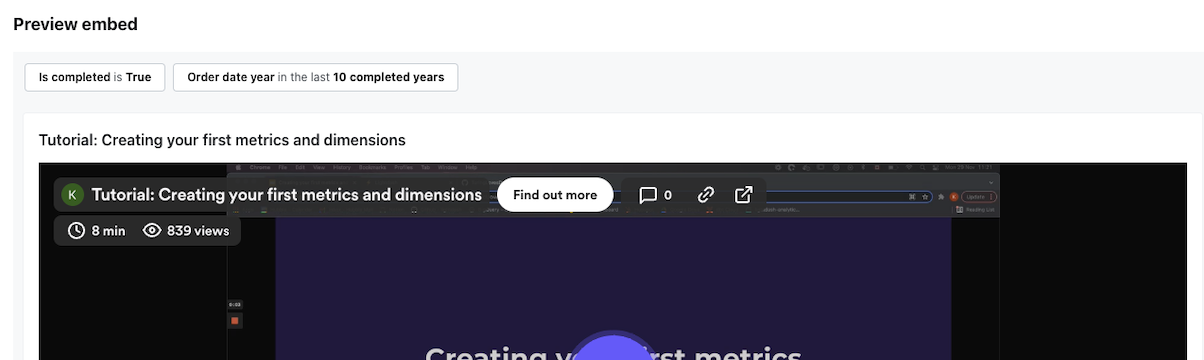
Specific filters only
Only the filters you select will be shown in the embedded dashboard for users to interact with. All dashboard filters are still applied.
dashboardFiltersInteractivity: {
  enabled: 'some',
  allowedFilters: ['filter-uuid-1', 'filter-uuid-2'],
}
Configuring in the UI:
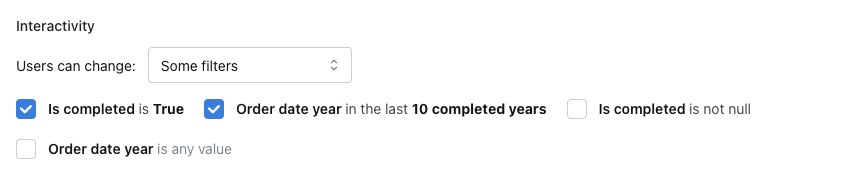
Will result in some filters in the dashboard for users to interact with:
Filters applied but hidden:
Filters are applied to the dashboard, but users cannot see or modify them.
dashboardFiltersInteractivity: {
  enabled: 'none',
}
Let viewers add their own filters:
Set canAddFilters: true to render an Add filter button in the embedded filter bar. Viewers can add temporary filters against any filterable field in the dashboard's explores. These filters live only in session state and the temp-filter deep-link parameter — reopening the embed URL clears them, and they are never saved back to the dashboard.
dashboardFiltersInteractivity: {
  enabled: 'all',
  canAddFilters: true,
}
The Add filter button only renders when filter interactivity is enabled (enabled: 'all', or enabled: 'some' with a non-empty allowedFilters). Omitting canAddFilters preserves the existing behavior (button hidden).
Parameter interactivity
Controls whether users can modify dashboard parameters.
parameterInteractivity?: {
  enabled: boolean,
}
When enabled, users can change parameter values in the dashboard UI.
Export options
Control what users can export from embedded content.
{
  canExportCsv?: boolean,        // Download chart data as CSV files
  canExportImages?: boolean,     // Download charts as PNG images
  canExportPagePdf?: boolean,    // Download entire dashboard page as PDF (dashboards only)
}
CSV Export:
- Enables "Download CSV" in chart tile menus
- Each chart can be exported individually
- Exports the data shown in the visualization
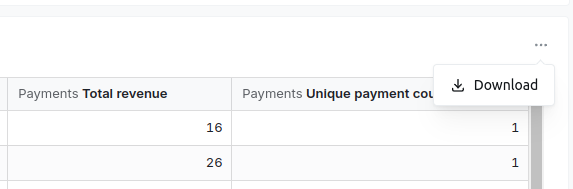
Image Export:
- Enables "Download as image" in chart tile menus
- Exports charts as PNG files
- Captures current chart state
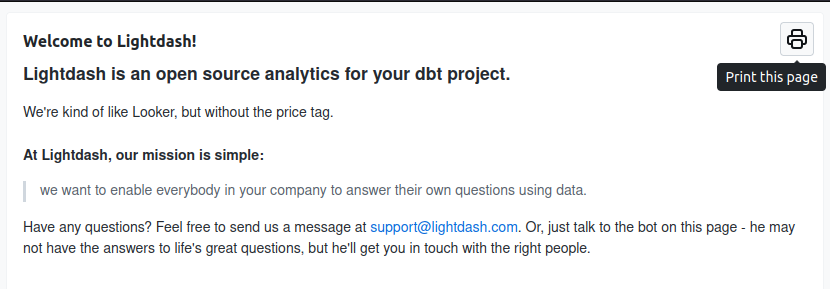
PDF Export (dashboards only):
- Enables print icon in dashboard header
- Exports entire dashboard page as PDF
- Includes all visible tiles
Date zoom
Allows users to zoom into time-series data by changing granularity.
canDateZoom?: booleanWhen enabled, the embed renders the dashboard's configured date zoom controls (the Default zoom plus any named controls), letting users change the date granularity of charts on the dashboard. See the Date zoom guide for complete documentation on this feature.
Explore from here
Enables navigation from dashboard charts to the explore view.
canExplore?: booleanWhen enabled, users see "Explore from here" in chart tile menus. This opens the full query builder with the chart's configuration pre-loaded.
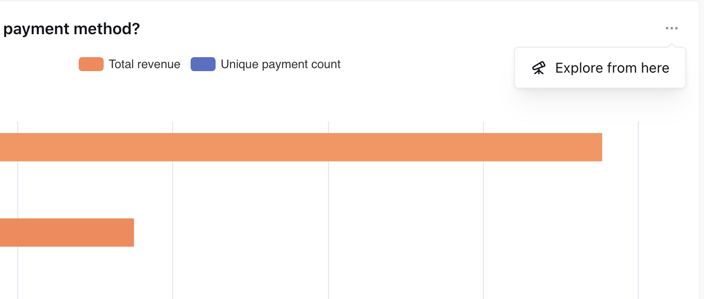
Users can:
- Modify dimensions and metrics
- Apply different filters
- Change chart types
- Run custom queries
Users cannot:
- Save charts
- Share results
- View SQL
View underlying data
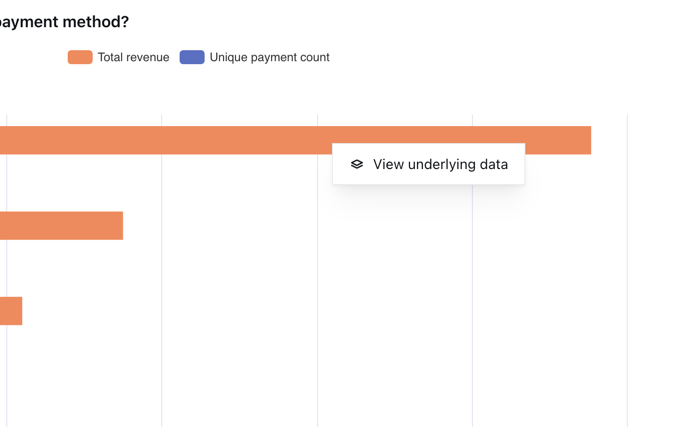
Allows users to view the raw data table behind visualizations.
canViewUnderlyingData?: booleanWhen enabled, users can click on charts to open a modal showing the underlying data table. Data cannot be exported separately (use canExportCsv for that).
View data apps
Allows data app tiles on an embedded dashboard to render and run their metric queries.
canViewDataApps?: booleanData app tiles run arbitrary metric queries against your semantic layer, so they need broader access than a standard chart tile. Enabling canViewDataApps grants the embed JWT the additional permissions a data app needs to mint a preview token and execute its queries. User attributes and SQL filters on the JWT still apply, so row-level access controls are enforced inside the data app exactly as they are on chart tiles.
When this option is off (the default), data app tiles on the dashboard render as a placeholder and no queries run. Turn it on when you trust the embed audience to see the data the app can request and you want the tile to behave the same as it does in Qyra.
Write actions
Write actions let embedded users save changes back to Qyra. When the JWT includes a writeActions claim, Qyra uses a configured actor (a service account or a regular user) to perform the write on behalf of the embedded viewer, and forces created or edited content into a specific destination space.
With writeActions, embedded users can:
- Save a new chart from the embedded Explore view.
- Edit an existing embedded dashboard with the React SDK — rename it, add saved charts from the allowed space, and move or resize tiles. See
Qyra.Dashboardedit mode. - Create a brand-new dashboard with the React SDK using
Qyra.DashboardBuilder.
This is useful when you want to let your customers explore data, change charts and dashboards, and save the result back to Qyra — without giving them a Qyra login.
writeActions?: {
  spaceUuid: string,                  // Required: destination space for created content
  serviceAccountUserUuid?: string,    // Use a service account as the actor
  userUuid?: string,                  // Or use an existing Qyra user as the actor
}
Rules:
spaceUuidis required and must belong to the same project as the embed.- You must provide exactly one of
serviceAccountUserUuidoruserUuid. - The actor must belong to the same organization as the project and (for
userUuid) be active. - The actor's permissions and space access still apply — the embed inherits whatever the actor can do in that space.
- When editing or building a dashboard, add-tile content is filtered to
spaceUuid, so embedded users can only pick saved charts from the allowed space. - Dashboards and charts created or edited through write actions are normal Qyra objects — they can be viewed and edited from Qyra and vice versa.
- Newly saved charts are not added to the embed allowlist automatically. They behave like normal private content and won't be re-embeddable unless you add them explicitly.
- API access tokens do not support write actions. They are for supported API reads, such as listing content through the React SDK.
Configure write actions
Configure write actions from Settings → Embedding by toggling Enable write actions and selecting:
- Service account — the Qyra actor that performs the write. You can pick an existing service account or create one inline. Only service accounts with a writable role (Admin, Developer, Editor, or an equivalent custom role) can be used.
- Space for created content — the destination space. You can pick an existing space or create one inline.
The settings panel generates a JWT snippet that includes the writeActions claim with the selected service account user UUID and space UUID. Copy that snippet into your backend token-generation code.
Using a service account
Service accounts are the recommended actor for embed write actions because their attribution stays consistent regardless of which embedded user is viewing.
import jwt from 'jsonwebtoken';

const token = jwt.sign({
  content: {
    type: 'dashboard',
    dashboardUuid: 'your-dashboard-uuid',
    canExplore: true,                  // Required to reach the Explore view from a chart tile
  },
  writeActions: {
    serviceAccountUserUuid: 'service-account-user-uuid',
    spaceUuid: 'destination-space-uuid',
  },
  userAttributes: {
    tenant_id: 'tenant-abc',
  },
}, QYRA_EMBED_SECRET, { expiresIn: '1h' });Using a regular user
If you want saved charts attributed to a specific Qyra user (e.g. an internal owner), use userUuid instead. The user must be active in the organization.
const token = jwt.sign({
  content: {
    type: 'dashboard',
    dashboardUuid: 'your-dashboard-uuid',
    canExplore: true,
  },
  writeActions: {
    userUuid: 'qyra-user-uuid',
    spaceUuid: 'destination-space-uuid',
  },
}, QYRA_EMBED_SECRET, { expiresIn: '1h' });Embedded users cannot pick a different space when saving. The space is fixed by the spaceUuid in the JWT. This keeps embedded write activity contained and predictable.
Allowed content
Allowed dashboards
Only dashboards added to the "allowed dashboards" list can be embedded.
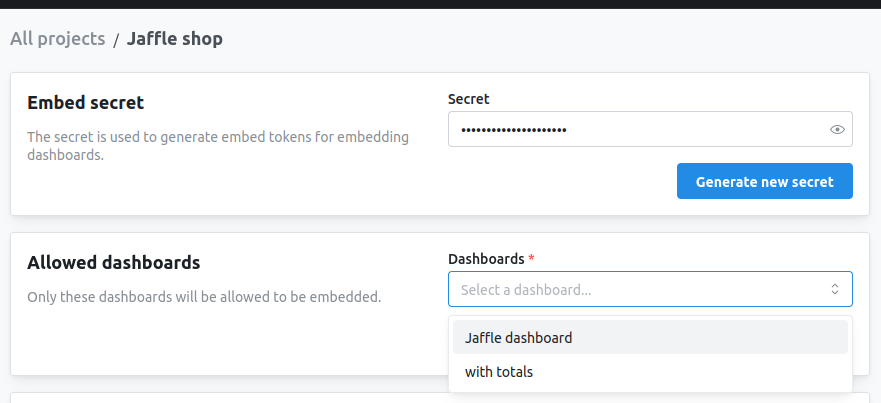
You can use the "Allow all dashboards" toggle to bypass dashboard selection. When enabled, any dashboard in your project can be embedded.
Allowed charts
Charts must be explicitly allowed for embedding. Add charts to the allowed list in your embed settings.
Chart embeds provide more granular access control than dashboards. Each chart must be individually allowed.
Default allow settings via environment variables
For self-hosted deployments, you can configure new project embeds to allow all dashboards and/or charts by default using environment variables:
| Variable | Description | Default |
|---|---|---|
EMBED_ALLOW_ALL_DASHBOARDS_BY_DEFAULT | When creating new embeds, allow all dashboards by default | false |
EMBED_ALLOW_ALL_CHARTS_BY_DEFAULT | When creating new embeds, allow all charts by default | false |
When these are set to true, new project embeddings will automatically have all dashboards or charts allowed without needing to manually configure the allowed content list.
See embedding self-hosting for the complete list of embedding-related configuration options.
User attributes
User attributes enable row-level and column-level security by filtering data based on user properties. Column-level security is especially useful when embedded users can Explore from here, since it ensures restricted fields stay hidden in the explore view as well.
userAttributes?: {
  [attributeName: string]: string,
}
Example:
{
  userAttributes: {
    tenant_id: 'customer-123',
    region: 'us-west',
    department: 'sales',
  }
}
The JWT userAttributes field drives both row-level and column-level access controls, the same ones available to Qyra account users:
- Row-level filtering: attributes are substituted into any
sql_filteron the dbt model (e.g.${qyra.attributes.tenant_id}), restricting which rows the embedded user can query. - Column-level filtering: attributes are matched against
required_attributesandany_attributesrules on dimensions, metrics, and tables. Fields whose rules the embedded user's attributes don't satisfy are stripped from the explore entirely: they don't appear in the field list, can't be queried, and return Forbidden if requested directly. Metrics derived from a hidden dimension are hidden too.
See the complete User attributes guide.
User metadata
Pass user information to track who's viewing embedded content.
user?: {
  externalId?: string,  // Your internal user ID
  email?: string,       // User's email address
}
This metadata appears in query tags for usage analytics. If you don't provide an externalId, Qyra automatically generates one based on the embed token.
Example:
{
  user: {
    externalId: 'user-12345',
    email: 'jane@example.com',
  }
}
Token expiration
JWTs should have short expiration times for security. Use your JWT library's expiration parameter:
jwt.sign(payload, secret, { expiresIn: '1h' })Recommended expiration times:
- Development/testing:
'24h'or'1 week' - Production dashboards:
'1h'to'4h' - Production charts:
'24h'(if used in public pages) - Explore sessions:
'4h'to'8h'(longer for analysis sessions)
Always generate tokens server-side with short expiration times. Never generate long-lived tokens in frontend code.
Code examples
Node.js
import jwt from 'jsonwebtoken';

const QYRA_EMBED_SECRET = process.env.QYRA_EMBED_SECRET;
const projectUuid = 'your-project-uuid';

// Dashboard embed
const dashboardToken = jwt.sign({
  content: {
    type: 'dashboard',
    dashboardUuid: 'dashboard-uuid',
    dashboardFiltersInteractivity: { enabled: 'all' },
    canExportCsv: true,
  },
  userAttributes: { tenant_id: 'tenant-123' },
}, QYRA_EMBED_SECRET, { expiresIn: '1h' });

const dashboardUrl = `https://app.qyraflow.com/embed/${projectUuid}#${dashboardToken}`;

// Chart embed
const chartToken = jwt.sign({
  content: {
    type: 'chart',
    contentId: 'chart-uuid',
    canExportCsv: true,
  },
}, QYRA_EMBED_SECRET, { expiresIn: '24h' });

const chartUrl = `https://app.qyraflow.com/embed/${projectUuid}/chart/chart-uuid#${chartToken}`;Python
import jwt
import datetime
import os

QYRA_EMBED_SECRET = os.getenv('QYRA_EMBED_SECRET')
project_uuid = 'your-project-uuid'

# Dashboard embed
dashboard_payload = {
    'content': {
        'type': 'dashboard',
        'dashboardUuid': 'dashboard-uuid',
        'dashboardFiltersInteractivity': { 'enabled': 'all' },
        'canExportCsv': True,
    },
    'userAttributes': { 'tenant_id': 'tenant-123' },
    'exp': datetime.datetime.utcnow() + datetime.timedelta(hours=1)
}

dashboard_token = jwt.encode(dashboard_payload, QYRA_EMBED_SECRET, algorithm='HS256')
dashboard_url = f"https://app.qyraflow.com/embed/{project_uuid}#{dashboard_token}"

# Chart embed
chart_payload = {
    'content': {
        'type': 'chart',
        'contentId': 'chart-uuid',
        'canExportCsv': True,
    },
    'exp': datetime.datetime.utcnow() + datetime.timedelta(hours=24)
}

chart_token = jwt.encode(chart_payload, QYRA_EMBED_SECRET, algorithm='HS256')
chart_url = f"https://app.qyraflow.com/embed/{project_uuid}/chart/chart-uuid#{chart_token}"Ruby
require 'jwt'

qyra_embed_secret = ENV['QYRA_EMBED_SECRET']
project_uuid = 'your-project-uuid'

# Dashboard embed
dashboard_payload = {
  content: {
    type: 'dashboard',
    dashboardUuid: 'dashboard-uuid',
    dashboardFiltersInteractivity: { enabled: 'all' },
    canExportCsv: true
  },
  userAttributes: { tenant_id: 'tenant-123' },
  exp: Time.now.to_i + 3600  # 1 hour
}

dashboard_token = JWT.encode(dashboard_payload, qyra_embed_secret, 'HS256')
dashboard_url = "https://app.qyraflow.com/embed/#{project_uuid}##{dashboard_token}"

# Chart embed
chart_payload = {
  content: {
    type: 'chart',
    contentId: 'chart-uuid',
    canExportCsv: true
  },
  exp: Time.now.to_i + 86400  # 24 hours
}

chart_token = JWT.encode(chart_payload, qyra_embed_secret, 'HS256')
chart_url = "https://app.qyraflow.com/embed/#{project_uuid}/chart/chart-uuid##{chart_token}"Java
import io.jsonwebtoken.Jwts;
import io.jsonwebtoken.SignatureAlgorithm;
import java.util.Date;
import java.util.HashMap;
import java.util.Map;

String QYRA_EMBED_SECRET = System.getenv("QYRA_EMBED_SECRET");
String projectUuid = "your-project-uuid";

// Dashboard embed
Map<String, Object> dashboardContent = new HashMap<>();
dashboardContent.put("type", "dashboard");
dashboardContent.put("dashboardUuid", "dashboard-uuid");
dashboardContent.put("canExportCsv", true);

Map<String, Object> userAttrs = new HashMap<>();
userAttrs.put("tenant_id", "tenant-123");

Map<String, Object> dashboardClaims = new HashMap<>();
dashboardClaims.put("content", dashboardContent);
dashboardClaims.put("userAttributes", userAttrs);

String dashboardToken = Jwts.builder()
    .setClaims(dashboardClaims)
    .setExpiration(new Date(System.currentTimeMillis() + 3600000)) // 1 hour
    .signWith(SignatureAlgorithm.HS256, QYRA_EMBED_SECRET)
    .compact();

String dashboardUrl = String.format(
    "https://app.qyraflow.com/embed/%s#%s",
    projectUuid, dashboardToken
);Security best practices
Never expose embed secret
// ❌ BAD: Never do this
const token = jwt.sign(payload, 'my-secret-key');  // Hardcoded secret

// ✅ GOOD: Use environment variables
const token = jwt.sign(payload, process.env.QYRA_EMBED_SECRET);
Generate tokens server-side only
// ❌ BAD: Don't generate tokens in frontend/browser
// This exposes your secret!

// ✅ GOOD: Create a backend API endpoint
app.get('/api/embed-token', authenticateUser, (req, res) => {
  const token = jwt.sign({
    content: { type: 'dashboard', dashboardUuid: 'xyz' },
    userAttributes: { tenant_id: req.user.tenantId },
  }, process.env.SECRET);

  res.json({ token });
});Use short-lived tokens
// ✅ GOOD: Tokens expire quickly
jwt.sign(payload, secret, { expiresIn: '1h' })

// ⚠️ CAUTION: Long-lived tokens are riskier
jwt.sign(payload, secret, { expiresIn: '30d' })
Validate user ownership
app.get('/api/embed-token', authenticateUser, async (req, res) => {
  const user = await getUser(req.user.id);
  const requestedDashboard = req.query.dashboardId;

  // ✅ Verify user has access to dashboard
  if (!userHasAccessTo(user, requestedDashboard)) {
    return res.status(403).json({ error: 'Unauthorized' });
  }

  const token = jwt.sign({ content: { ... } }, secret);
  res.json({ token });
});Use user attributes for row- and column-level security
// ✅ Filter data by user's tenant
{
  userAttributes: {
    tenant_id: user.tenantId,  // From server-side user object
  }
}
See User attributes reference for complete implementation guide.