Preview projects
Temporary copies of a project where you can experiment without touching production
Charts and dashboards are copied from your production project into your preview project so you can test your changes and make updates to existing content.
Preview projects are commonly used to:
- test changes in models, metrics and dimensions.
- make changes to important content in production without any downtime by promoting the content you've changed in your preview project when it's ready.
Creating a preview project
Only users who have developer permissions or above in a project can create preview projects.
Qyra CLI Tool (Local)
You can use the Qyra CLI tool to generate preview projects in Qyra from your command line.
# This will create a preview and will wait until you press a key to delete the preview project
qyra preview
or
# This will create a preview and exit, you will have to run qyra stop-preview to delete it
qyra start-preview
You can see more information about the Qyra preview CLI command here.
Qyra App
You can create a preview project in the Qyra web app by clicking on the Projects list, then clicking + Create Preview.
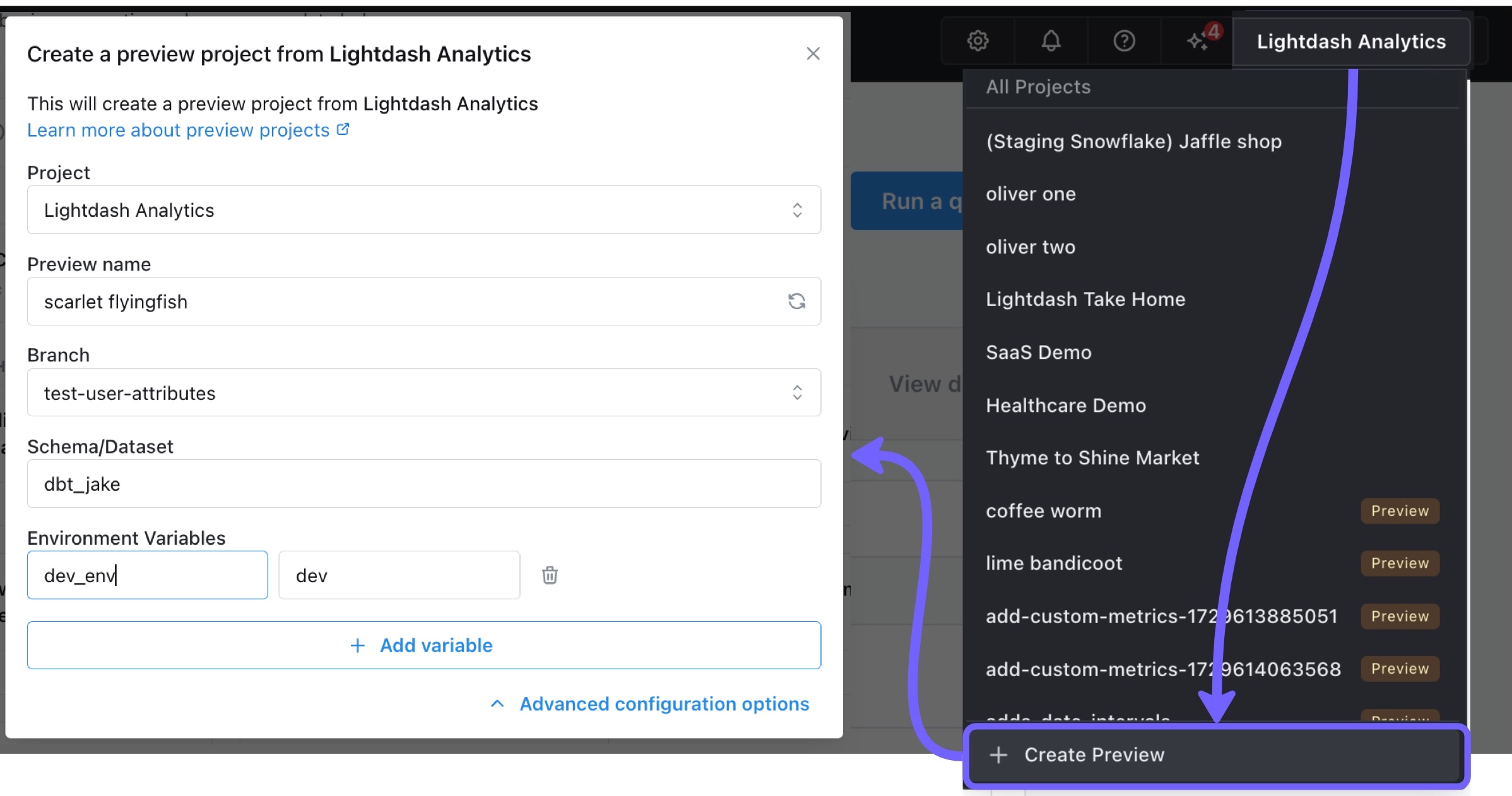
Preview projects created in the app are useful in two main scenarios:
- You only want to make changes to Charts and Dashboards (not YAML or dbt models).
- You want to preview changes by pulling code from a specific git branch.
Making changes to important content in production
You can leave out the branch and schema fields and you'll get a preview project with a copy of all your content. You can create or update charts and dashboards, then promote the content back to your main project when it's ready.
Creating a preview project from a Github branch
By choosing a branch (and optionally setting a schema or environment variables) you can create a preview project that uses code from a different branch than your main project. This is perfect for previewing changes you made on a branch in dbt Cloud, for quick edits where you don't want to fire up the CLI, and for teammates who don't have local development or the CLI set up.
Note: this only works with GitHub. It is currently not possible to create previews from GitLab branches in the Qyra App UI.
Pull Requests (GitHub Actions)
You can automatically create preview projects in GitHub each time you open a pull request. This allows you to easily test out changes you've made to your dbt project, in Qyra.
Learn more about setting up a Qyra preview project for pull requests using GitHub Actions here.
Using preview projects from the CLI
Strict compilation
Qyra uses partial compilation by default. Field, join, and set-validation failures that can be isolated are reported as warnings so the rest of the explore stays usable; failures that cannot be isolated can still produce errors.
Add --no-partial-compilation to report the failures that partial compilation would otherwise isolate as errors instead. It doesn't promote unrelated, non-blocking warnings — other generic compilation warnings stay non-blocking.
If your project uses physical column references such as ${TABLE}.order_id, add --validate-warehouse-columns to check supported unquoted references with warehouse queries that return no rows. It's opt-in because it sends those queries; whether your warehouse scans or bills for them is warehouse-dependent, and the check needs warehouse credentials and the warehouse catalog. Warehouse-column errors are reported whether partial compilation is on or off.
See the CLI compilation options for the supported reference syntax and every skip condition.
These flags work with both qyra preview and qyra start-preview, and --ignore-errors still lets preview creation continue after strict compilation errors:
qyra start-preview --name "strict-preview" --no-partial-compilation --validate-warehouse-columnsOpen and work in your preview
After qyra preview or qyra start-preview spins up the project, cmd + click to open the preview link from your terminal. Once you're in Qyra go to Explore --> Tables, then click on the model(s) you just updated to see your changes and play around with them.
While your preview is running, you can run dbt compile in a separate terminal session to update your dbt models. After compiling, refresh your browser to see the changes in Qyra. This is not a hot reload — you need to refresh the page yourself.
Problems with credentials?
When you create preview projects, Qyra will use the same warehouse connection settings you have in your profiles.yml file for your current dbt project. This can be a problem if you're using a local database that your laptop can reach but your Qyra instance cannot.
Redshift with method: iam
If your dbt Redshift profile authenticates with method: iam, qyra preview resolves an AWS identity from your local AWS credential chain and forwards the resulting access key ID, secret access key, and (if present) session token to the backend. The backend then uses them to mint short-lived Redshift credentials per query, but only for the preview project.
- If
iam_profileis set on the dbt target, the CLI resolves credentials from that profile (fromIni), matching dbt's own precedence. This covers AWS SSO profiles. - Otherwise the CLI walks the default provider chain (
fromNodeProviderChain): environment variables, the default profile, SSO, then an instance role. - If the chain resolves nothing,
qyra previewfails fast with an actionable error pointing ataws sso login(or configuring a profile) rather than creating a broken preview.
The common workflow is signing in with SSO and then starting a preview. No long-lived per-user AWS keys required:
aws sso login --profile my-redshift-profile
qyra preview
Because SSO and role credentials are short-lived, the CLI prints a warning showing the expiry when it forwards temporary credentials. Queries in the preview project will stop working once the session expires. Re-run aws sso login and qyra preview to refresh them.
This applies to ephemeral preview projects created from your local dbt profile. For a durable, persistent project connection to Redshift with IAM, use a role the Qyra backend assumes (assumeRoleArn). See Connect Redshift.
Permissions
Permissions are copied from the parent project
All permissions from the parent project are carried over to the preview project.
For example:
- Priyanka is a project interactive viewer and Irakli is a developer in a project called
Marketing Insights. - Irakli creates a preview project of
Marketing InsightscalledMarketing Insights Preview. - He creates a chart in
Marketing Insights Previewand shares it with Priyanka. - Priyanka can open the chart because she was an interactive viewer in
Marketing Insights, so her permissions were copied over toMarketing Insights Preview.
Only users who are developers or admins can see preview projects in the project list.
However, users with access to a preview project can open links shared with them from the preview project.
Only content a user has access to will be copied to the preview project
For the user creating a project, only content they have access to will be copied over to the preview project.
For example:
- Irakli is a developer in the
Marketing Insightsproject - Inside the project, there is a space called
Finance private space. - Irakli doesn't have access to
Finance private space - Irakli creates a preview project of
Marketing InsightscalledPreview Marketing Insights - The
Finance private spacewill not be copied over to his preview project (because he doesn't have access to it).
Project connection settings
The project connection settings cannot be changed in a preview project.
Qyra CLI Tool (Local)
For preview projects created from the CLI, all project connection settings come from your local profiles.yml file.
That means that we will use the same default connection settings that you're using locally for development, unless you specify different options in your CLI commands.
For example:
- By default,
qyra previewwill use theprofiles.ymlfile located at~/.dbt/profiles.yml. If you want to use a differentprofiles.ymlfile, you can specify this using the optionqyra preview --profiles-dir path/to/directory. qyra previewwill use whatever default target that is set in yourprofiles.ymlfile. The database connection settings (schema, project, dataset, etc.) from this target will be used as the database connection settings for your preview project. You can override the target used to create your preview project using the flagqyra preview --target my-target-name
Qyra App
For preview projects created in the Qyra app, all project connection settings are copied directly from the project the preview is built from.
For example:
- I have a project called
Qyra Analyticsand I create a preview of that project calledPreview Qyra Analytics Preview Qyra Analyticswill have the same project connection settings (warehouse connection, dbt project connection, etc.) asQyra Analytics.
The project connection settings cannot be changed in a preview project.
Pull Requests (GitHub Actions)
For preview projects created from GitHub actions, the project connection settings come from the profiles.yml file that you've specified to use in your GitHub action.
If you haven't changed anything from our default GitHub action script, then the connection settings used for your preview project should be whatever you've specified in your DBT_PROFILES secret.
You have three options for setting up project connections in your GitHub Actions:
- Set up a single project connection that's used in every pull request. E.g. always use the
prodtarget. You can follow the instructions here for your data warehouse - If you're using dbt Cloud, you can use the dbt Cloud schema to manage the connection used in the pull request.
- Create a project connection per developer in GitHub (similar to
devprofiles in your dbt project) so the connection changes depending on who opened the pull request. This is useful if you use different development schemas for team members developing in dbt.
Content in preview projects
When you create a preview project, the content is copied from the production project. The content in a preview project does not get re-synced from the project it's been created from.
For example:
- I have a project called
Qyra Analyticswith a chart calledRevenue by source - I create a preview of that project called
Preview Qyra Analytics - The
Preview Qyra Analyticsproject has the same chart calledRevenue by source - I change the
Revenue by sourcechart inQyra Analytics(i.e. in the production project) - The
Revenue by sourcechart inPreview Qyra Analyticsis not updated. It is the same chart as when the preview project was first created.
Promoting content from preview projects
Promoting content allows you to sync charts and dashboards that you've created or updated in your preview project to your production project. This means you can use preview projects to make changes to important content in production without any downtime.
Learn more about promoting content from preview projects here.
Preview expiration
Preview projects are automatically deleted after they expire. By default, previews expire 720 hours (30 days) after they're created.
Project admins can configure the default expiration and a maximum cap for every preview created from an upstream project.
Configure preview expiration
You need update Project permission (project admin or organization admin) to change these settings.
- Open the upstream project's Project settings.
- In the sidebar, select Preview settings.
- Set the values you want and click Save:
- Default preview expiration (hours) — used when a preview is created without an explicit
--expires-invalue. - Maximum preview expiration (hours) — the upper bound. Any
--expires-invalue above this is silently capped to the maximum.
- Default preview expiration (hours) — used when a preview is created without an explicit
Both values must be at least 1 hour, and the default must be less than or equal to the maximum.
How the limits are applied
- Previews created from this project (CLI, GitHub Actions, or the Qyra app) inherit the upstream project's default expiration when no value is provided, and any
--expires-invalue above the maximum is clamped down to the maximum. - Standalone previews (CLI previews with no upstream project) keep the platform default of 720 hours and are not clamped.
For example, with a default of 48 and a maximum of 168:
# Uses 48 hours (the project default)
qyra preview --name "PR: Add Revenue Metric"

# Uses 168 hours (clamped down from 240)
qyra preview --name "Long-lived preview" --expires-in 240
Refreshing expiration on an existing preview
Re-running qyra start-preview with the same --name as an existing preview refreshes its expiration. expires_at is recomputed from the moment of the re-run using the same rules as a fresh preview — bounded by the upstream project's default and maximum.
Omitting --expires-in on a re-run resets the expiration to the upstream project's default, since a re-run is treated as confirmation that the preview is still in use.
# First run: creates the preview and sets expires_at based on the upstream default
qyra start-preview --name "ecom-shop-analytics"

# Later re-run without --expires-in: resets expires_at to the upstream default from now
qyra start-preview --name "ecom-shop-analytics"

# Re-run with an explicit value: sets expires_at to 72 hours from now (capped at the maximum)
qyra start-preview --name "ecom-shop-analytics" --expires-in 72Deleting a Preview Project
Preview projects created using any method can be deleted in the Qyra App.
There are also other more automated ways of deleting preview projects created in the Qyra CLI and in GitHub Actions explained below.
Qyra CLI Tool (Local)
If you use the command qyra preview to generate a preview project from your CLI, then hitting Enter from your CLI should delete the preview project.
If you use the command qyra start-preview to generate a preview project from your CLI, then running the command qyra stop-preview should delete your preview project.
For more details on the qyra preview CLI command, check out the docs here.
Qyra App
You can delete preview projects you've created in the app by navigating to the project settings, then clicking on all projects in the sidebar under the organization settings header.
You'll see a list of all of the projects in your organization. You can switch to the preview projects tab to filter to a list of preview projects in your organization.
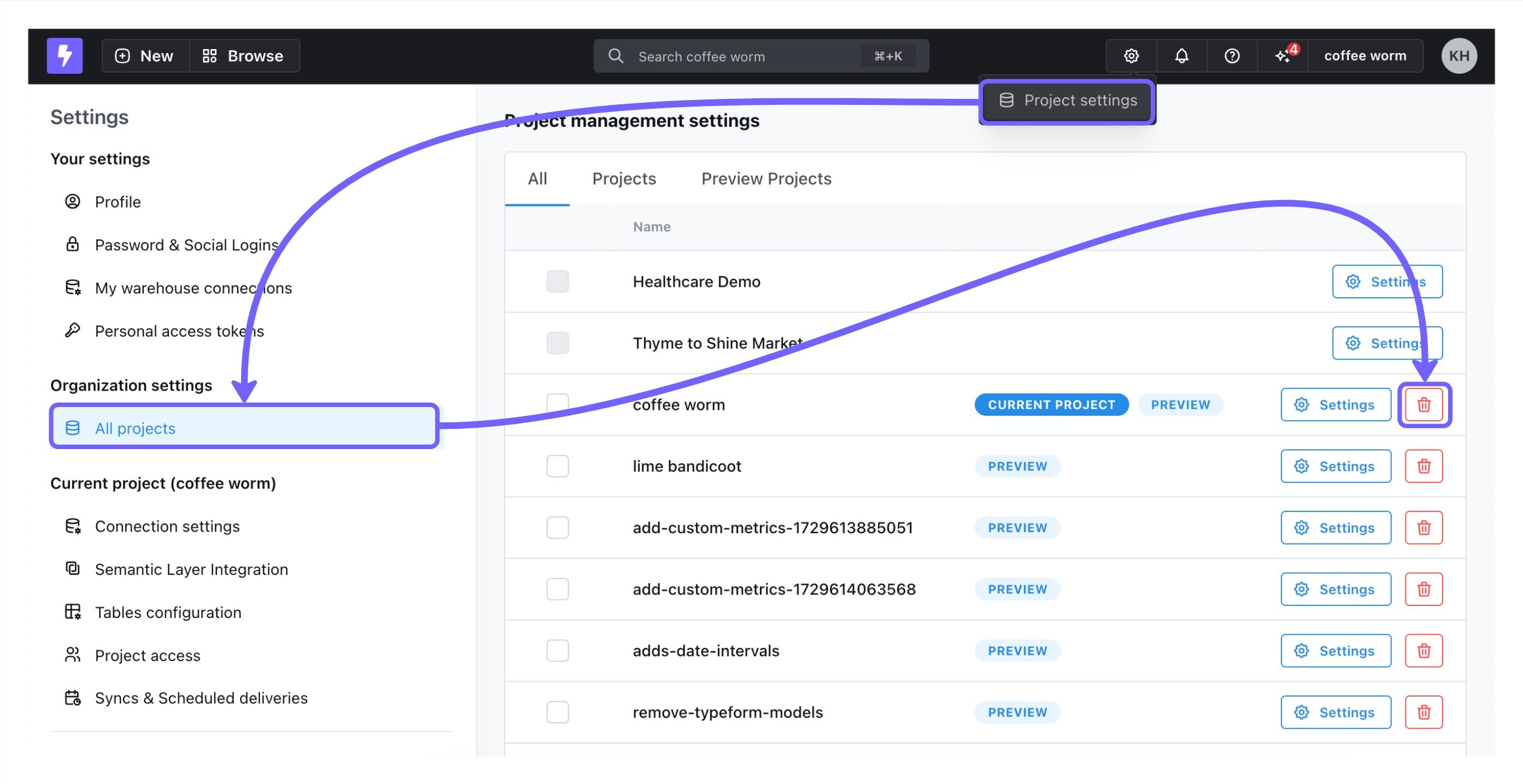
If you have developer access, you can only delete preview projects that you created.
If you are an organization admin, you can delete any preview project in the organization.
Pull Requests (GitHub Actions)
If you've added both the start-preview and stop-preview workflows in GitHub, then the preview environments you've created in your pull requests should automatically be deleted when the pull request gets merged.