Roles and permissions
Organization, project, and space roles, how they stack, and every permission each grants
Organization vs. project roles
Organization roles and project roles work at two different levels:
- Organization roles apply across your whole instance. They're for the big-picture, instance-wide settings — like managing AI agent settings — and they carry across every project that lives inside that instance.
- Project roles and scopes are narrower. They grant permission to do specific things inside one particular project, without affecting anything outside it.
In short: organization roles oversee everything; project roles handle the details within a single project.
Example: Acme, Inc.
Acme, Inc. is an organization with three projects: Customer facing, Internal analytics, and Another project. Here's how roles and groups combine to give each person the right access:
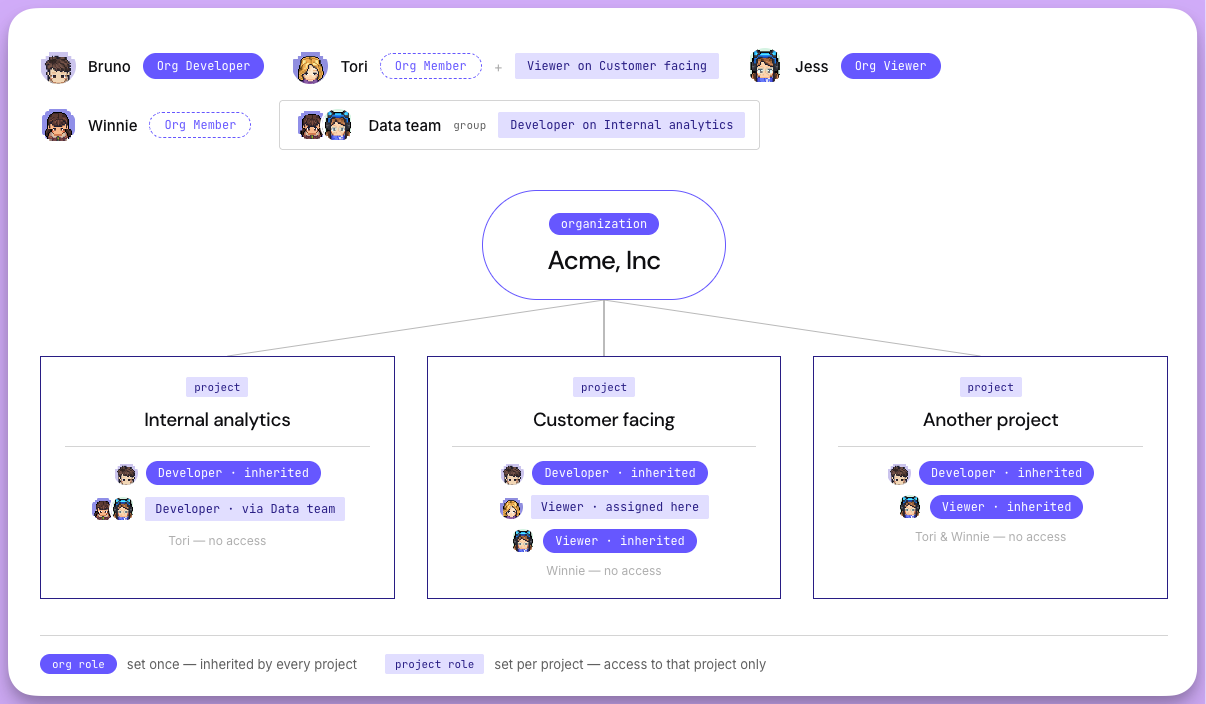
- Bruno — Org
Developer. Set once at the org, so he's automatically aDeveloperin all three projects (and any future ones). No per-project setup needed. - Tori — Org
Member+Vieweron Customer facing project.Memberis the blank-slate minimum: it grants nothing by itself. Her only access comes from the project role assigned directly on Customer facing, so that's the only project she can see. - Jess — Org
Viewer+ Data team group. Her org role cascades, so she's aViewerin every project. In Internal analytics she also hasDeveloperaccess which she inherited from the Data team group's project role. Note that org and project permissions stack additively. - Winnie — Org
Member+ Data team group. Like Tori,Membergives her nothing by default. Her only access isDeveloperon Internal analytics, inherited through the Data team group — she can't see the other two projects. - Data team — a group, not a user. Assigned
Developeron Internal analytics once; every member (Jess, Winnie) inherits it. Add someone to the group and they get the same access — no individual assignments to maintain.
Roles in your Qyra instance
-
Everybody in your organization will join as an
Organization Memberunless specified. For example, if I invite someone to a project as an editor, they will become an organization member witheditoraccess to that project. If I invite someone to the organization as aviewer, then they will be anorganization viewer(instead of anorganization member). -
Only Organization Admins can create new projects (and will be the Project Admin for those projects). Organization Developers can create preview projects only. Editors, Interactive Viewers, Viewers, and Members cannot create projects.
-
Admins have access to all content (even content they haven't been explicitly invited to).
Space Roles
There are three space roles: Full Access, Can Edit, Can View
| Action | Full Access | Can Edit | Can View |
|---|---|---|---|
| View space content | |||
| Manage space content | |||
| Manage space access | |||
| Manage space details |
The table describes the capabilities granted by each effective Space role. See how Space permissions combine for the complete resolution model.
Space permissions determine which users can edit Space content (charts and dashboards), view the content in a Space, and change a Space's settings:
-
A user needs to have at least the
Can viewaccess level to a space to see that the space exists and to see the charts and dashboards inside it. -
A user needs to have the
Can editaccess level to a space to edit the content in the space (add/delete/rename charts and dashboards). -
The
Full accessSpace role grants permission to manage access to the Space and edit its details (name, description, etc.).
Space permissions don't otherwise control what users can do, or which data they can use to build their own content.
This means:
-
a project viewer who has
Can editspace permissions cannot get access to build or edit charts because Viewers don't have access to the Explore view -
an interactive viewer who is given
Can editspace permissions can save content in that space but not in any other space (unless giveneditaccess to another space) -
an editor whose only applicable Space grant is
Can viewcannot edit the content in that Space. A higher user, group, or ancestor-Space grant can still give themCan edit.
Adjusting space permissions
You can adjust an individual user's permissions, or the permissions of a group in a Space.
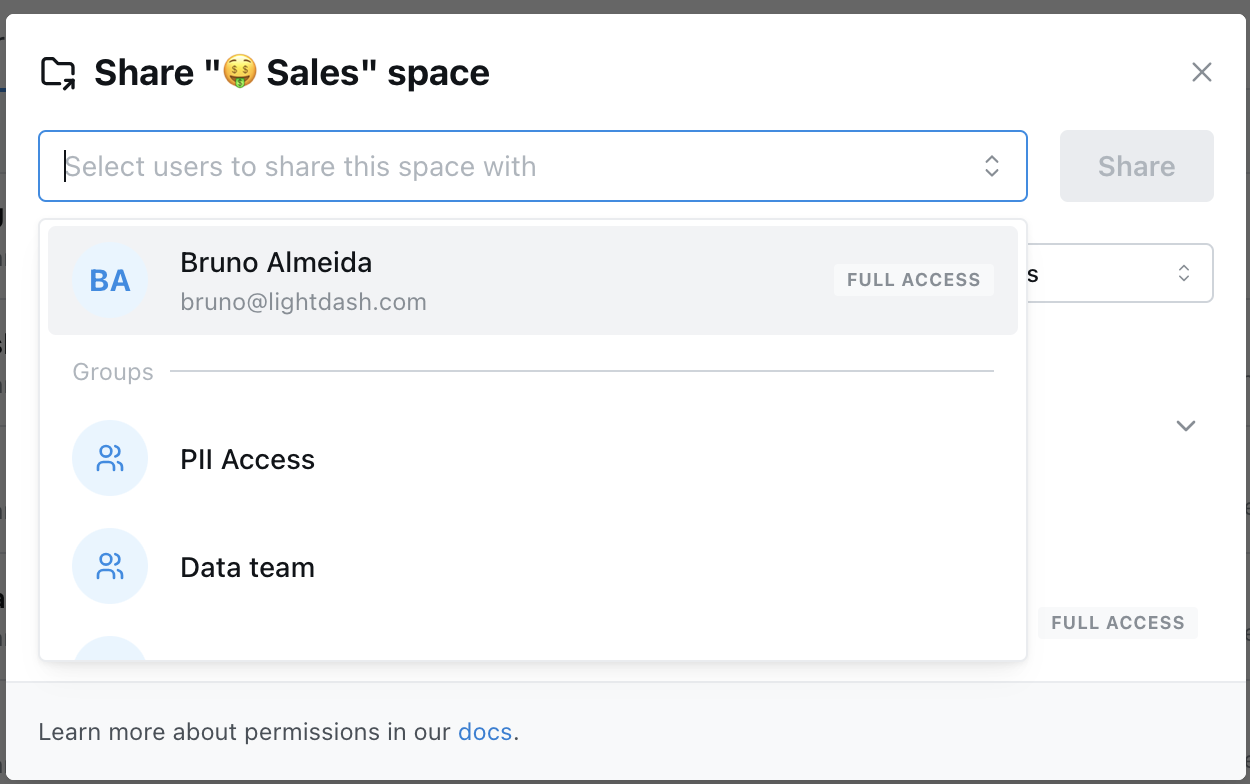
A user can receive access from individual assignments, groups, All project members, and parent Spaces. A lower individual assignment does not override a higher group or inherited grant. For example, if Priyanka has an individual Can View assignment and receives Can Edit from the Design group, her effective access is Can Edit.
See Managing access to a Space for how to inspect effective access and configure a Space where most project members can view content but only selected people can edit it.
Allowed email domains to join organization automatically
Organization admins can add allowed email domains to their organization settings so that anyone with those email domains can automatically join their organization (without explicitly inviting them).
To update your organization's allowed email domains setting, go to the General section of your Organization settings.
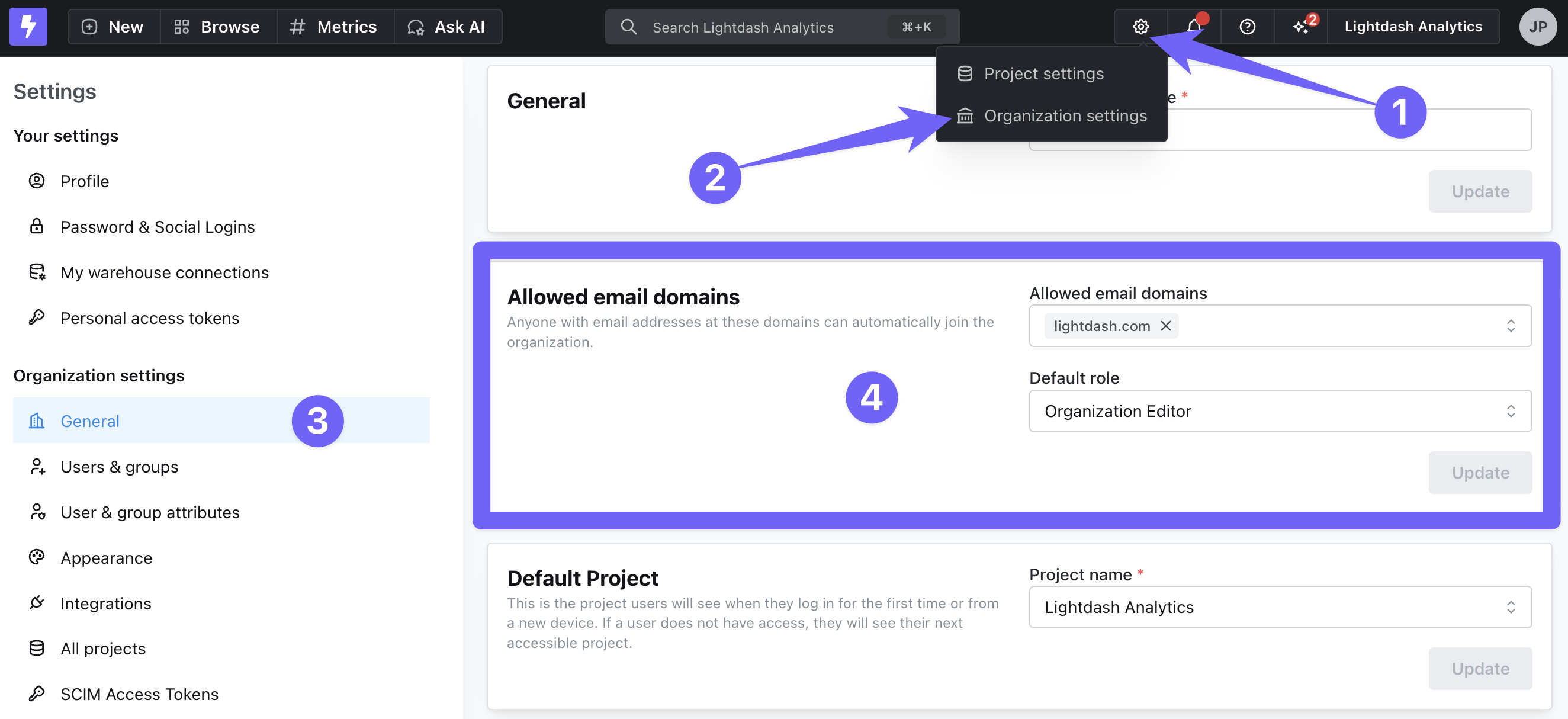
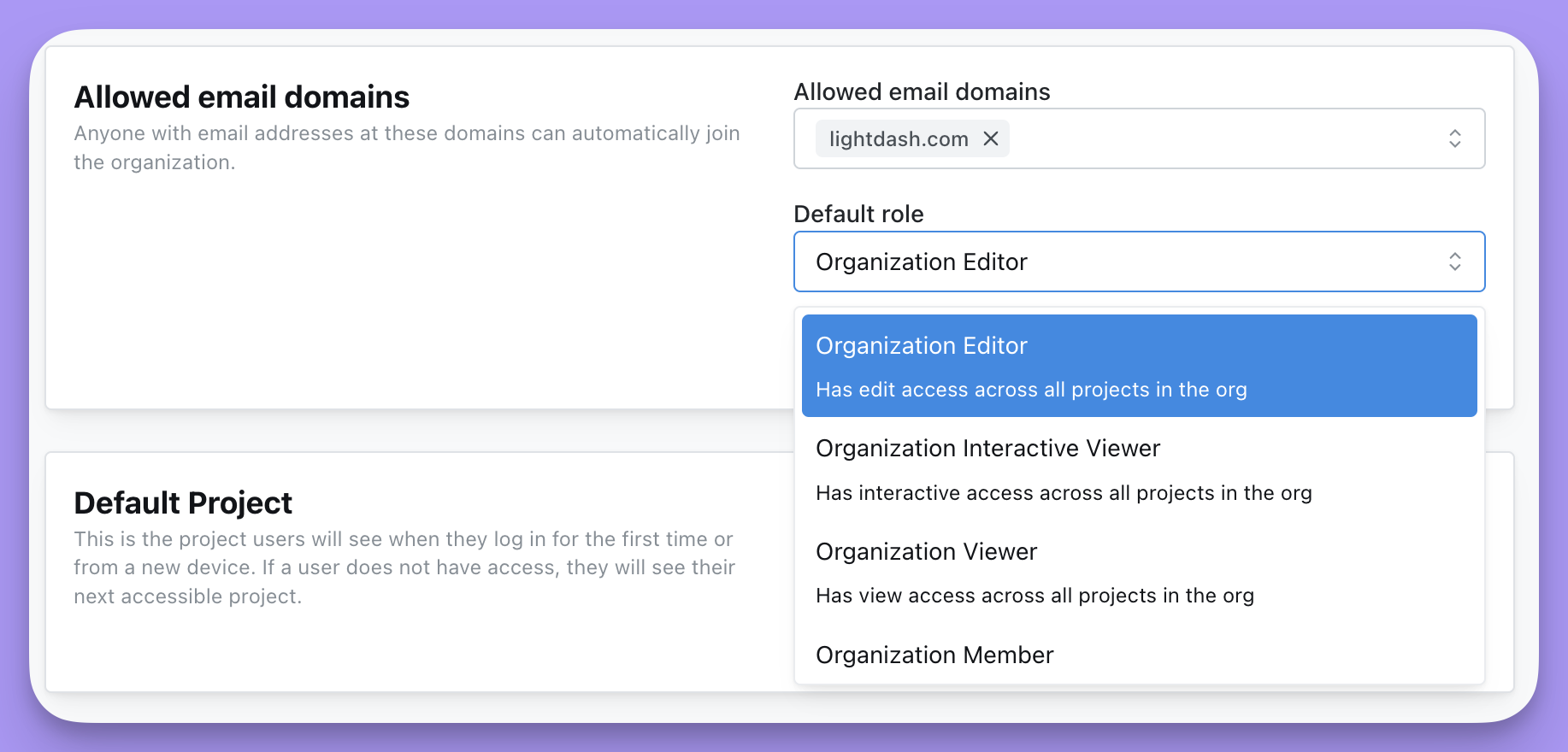
In the Allowed email domains panel, enter the email domain(s) you want to be able to automatically join your organization (e.g. here, we've added qyraflow.com). Generic email domains like gmail.com or hotmail.com are not accepted.
You can then select the access that you want these users to have by default. The organization Admin can always update a user's permissions after they've joined!
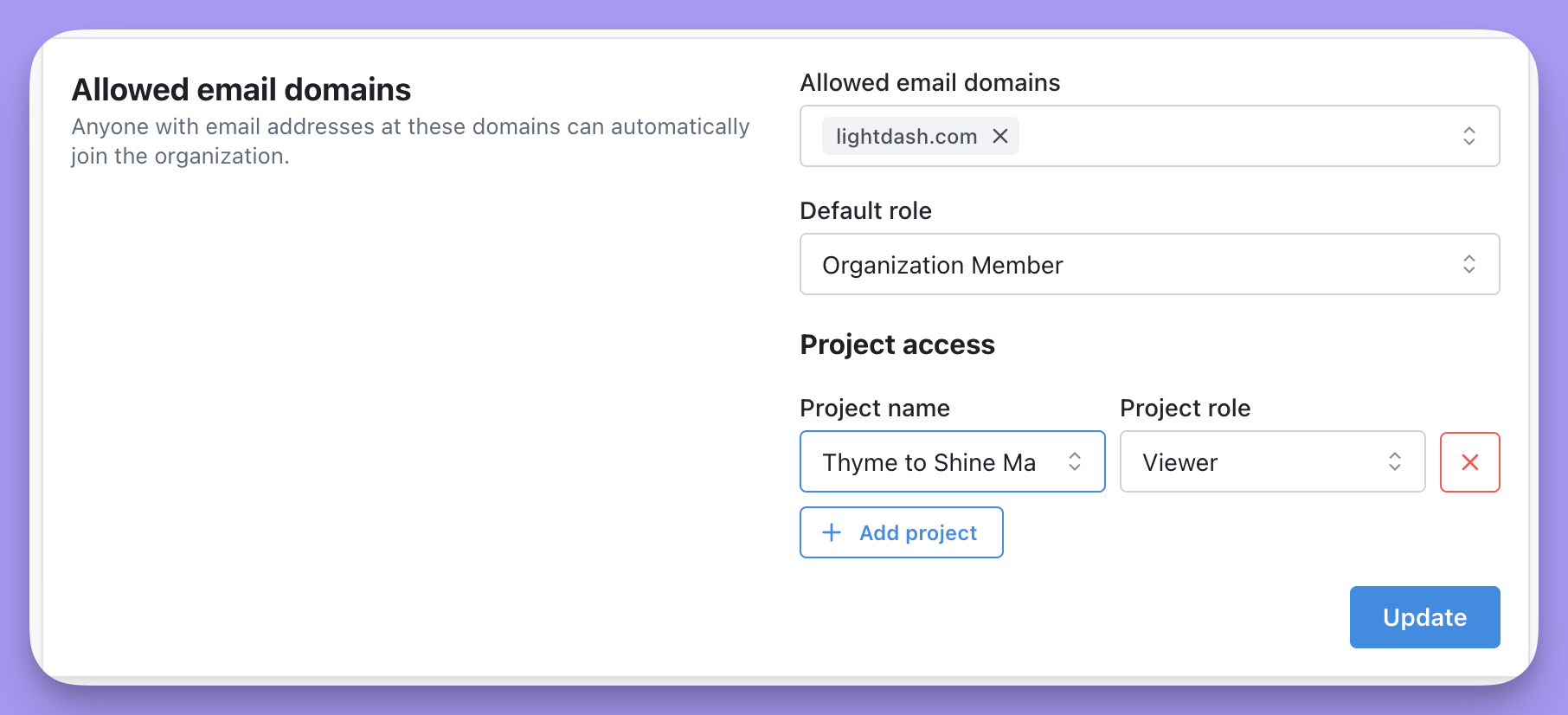
If you want to add default permissions that are different across each project, you can select the organization role of Organization member, then set the project access for each project.
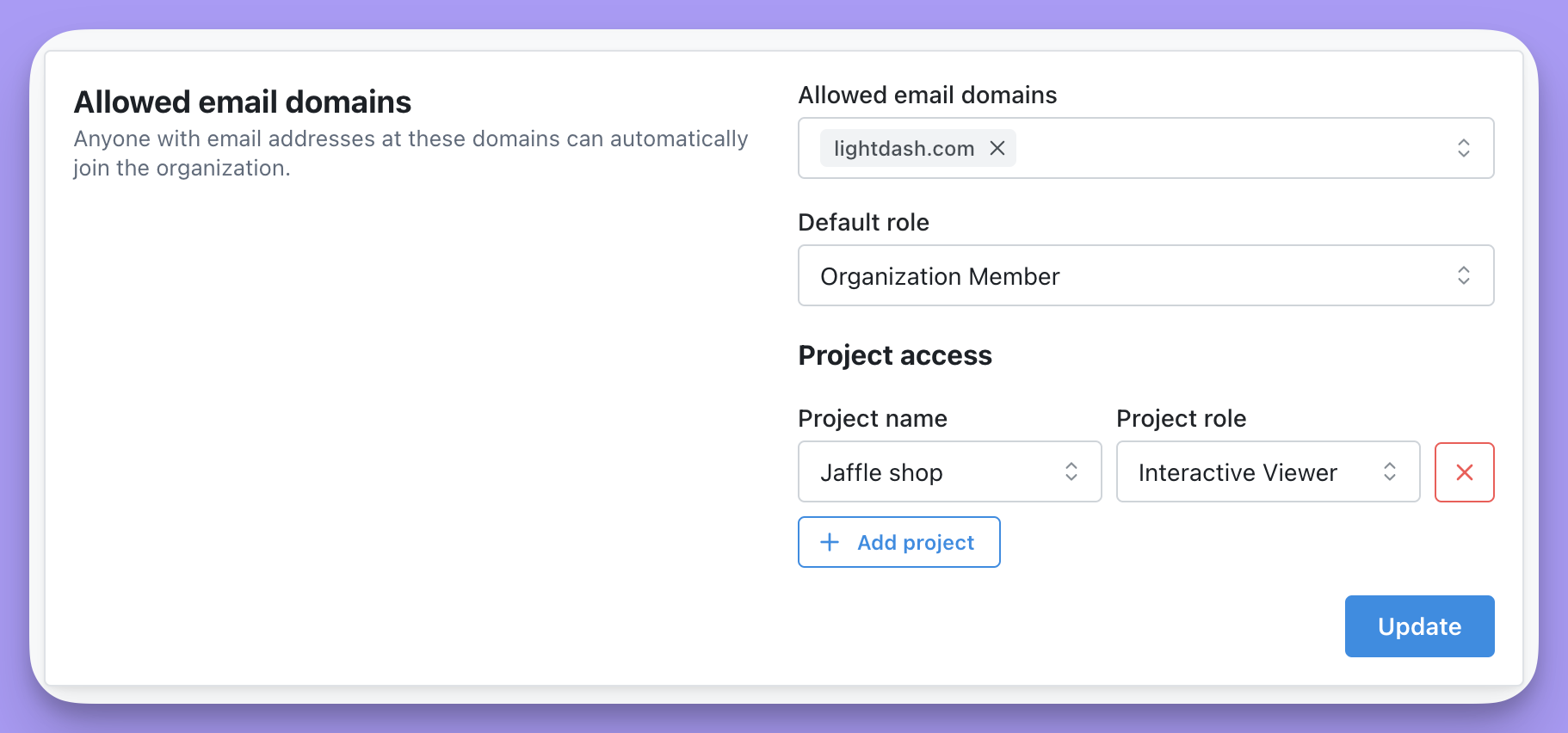
Once you've selected the default roles for your allowed email domains, make sure to click Update to save your changes.
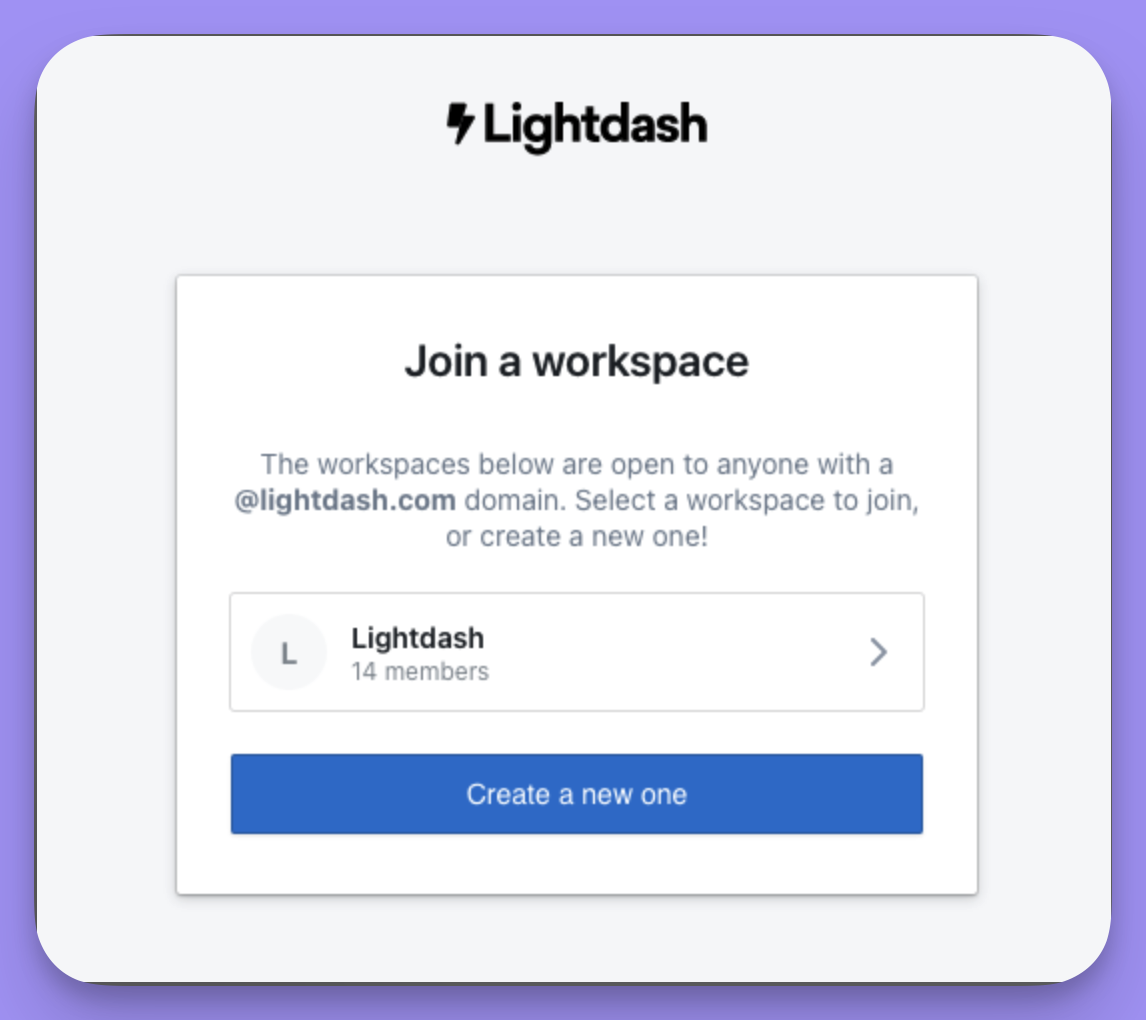
Now, when a user tries to join Qyra, they will be prompted to join your workspace if they have one of your allowed email domains.
Setting a Default Project
In the Organization settings you can set a default project. This is the project users will see when they log in for the first time or from a new device. If a user does not have access, they will see their next accessible project.
Project roles and permissions
Project Admins can invite users to their project and assign users or groups to roles in that project. Projects may also be accessible to users through their organization roles.
| Permission | Project Viewer | Project Interactive Viewer | Project Editor | Project Developer | Project Admin |
|---|---|---|---|---|---|
| View Dashboard | |||||
| Manage Dashboard | |||||
| Manage Dashboard Space | |||||
| Manage Dashboard Self | |||||
| View Saved Chart | |||||
| Manage Saved Chart | |||||
| Manage Saved Chart Space | |||||
| Manage Saved Chart Self | |||||
| View Space | |||||
| Create Space | |||||
| Manage Space | |||||
| Manage Space Public | |||||
| Manage Space Assigned | |||||
| Manage Space Self | |||||
| View Dashboard Comments | |||||
| Create Dashboard Comments | |||||
| Manage Dashboard Comments | |||||
| View Tags | |||||
| Manage Tags | |||||
| View Pinned Items | |||||
| Manage Pinned Items | |||||
| Manage Deleted Content | |||||
| View Content Verification | |||||
| Manage Content Verification | |||||
| Promote Saved Chart | |||||
| Promote Saved Chart Space | |||||
| Promote Dashboard | |||||
| Promote Dashboard Space | |||||
| View Project | |||||
| Create Project Preview | |||||
| Update Project | |||||
| Update Project Self | |||||
| Delete Project | |||||
| Delete Project Self | |||||
| Manage Project | |||||
| Manage Compile Project | |||||
| Manage Deploy Project | |||||
| Manage Deploy Project Self | |||||
| Manage Validation | |||||
| Manage Scheduled Deliveries Self | |||||
| Create Scheduled Deliveries | |||||
| Manage Scheduled Deliveries | |||||
| Manage Google Sheets | |||||
| View Analytics | |||||
| Create Job | |||||
| View Job | |||||
| View Job Self | |||||
| Manage Job | |||||
| View Job Status | |||||
| View Job Status Self | |||||
| View Content As Code | |||||
| Create Content As Code | |||||
| Manage Content As Code | |||||
| Manage Content As Code Self | |||||
| View Underlying Data | |||||
| View Semantic Viewer | |||||
| Manage Semantic Viewer | |||||
| Manage Semantic Viewer Space | |||||
| Manage Explore | |||||
| Manage Explore Self | |||||
| Manage Sql Runner | |||||
| Manage Custom Sql | |||||
| Manage Custom Fields | |||||
| Manage Custom Sql Table Calculations | |||||
| Create Virtual View | |||||
| Delete Virtual View | |||||
| Manage Virtual View | |||||
| Manage Pre Aggregation | |||||
| Manage Export Csv | |||||
| Manage Change Csv Results | |||||
| View Source Code | |||||
| Manage Source Code | |||||
| View Ai Agent | |||||
| Manage Ai Agent | |||||
| View Ai Agent Document | |||||
| Manage Ai Agent Document | |||||
| View Ai Agent Thread | |||||
| View Ai Agent Thread Self | |||||
| Create Ai Agent Thread | |||||
| Manage Ai Agent Thread | |||||
| Manage Ai Agent Thread Self | |||||
| View Data App | |||||
| Manage Data App | |||||
| Manage Data App Space | |||||
| Create Data App | |||||
| View Data App Self | |||||
| Manage Data App Self | |||||
| View External Connection | |||||
| Manage External Connection | |||||
| Manage Spotlight Table Config | |||||
| View Spotlight Table Config | |||||
| View Metrics Tree | |||||
| Manage Metrics Tree |
Organization roles and permissions
Organization Admins can assign roles to organization members. Organization-only permissions manage settings and resources across the Qyra organization.
| Permission | Organization Member | Organization Viewer | Organization Interactive Viewer | Organization Editor | Organization Developer | Organization Admin |
|---|---|---|---|---|---|---|
| View Organization | ||||||
| Manage Organization | ||||||
| View Organization Member Profile | ||||||
| Manage Organization Member Profile | ||||||
| Manage Invite Link | ||||||
| Manage Group | ||||||
| Manage Git Integration | ||||||
| View Organization Warehouse Credentials | ||||||
| Manage Organization Warehouse Credentials | ||||||
| Manage Personal Access Token | ||||||
| Impersonate User | ||||||
| View Organization Ai Agent | ||||||
| Manage Organization Ai Agent | ||||||
| View Organization Design | ||||||
| Manage Organization Design |